




Getting Started With Carveco Maker Plus
Thank you for purchasing Carveco Maker Plus or a Carveco Maker Plus subscription from our online store
The following guide is to help get you up and running with your software as quickly as possible. The steps below will cover how to download, install, activate and manage Carveco Maker Plus, and hopefully minimise any potential problems you may encounter.
1. Downloading Your Software
Following a successful purchase from our online store, you will receive an email from ‘Carveco via Sendowl’ (SendOwl is our fulfilment partner) where the email subject contains your order number – for example:
Subject: ‘Carveco license for Order US-CSXXXX‘.
This email contains:
- A link to download your software.
- Your unique license key to activate your software.
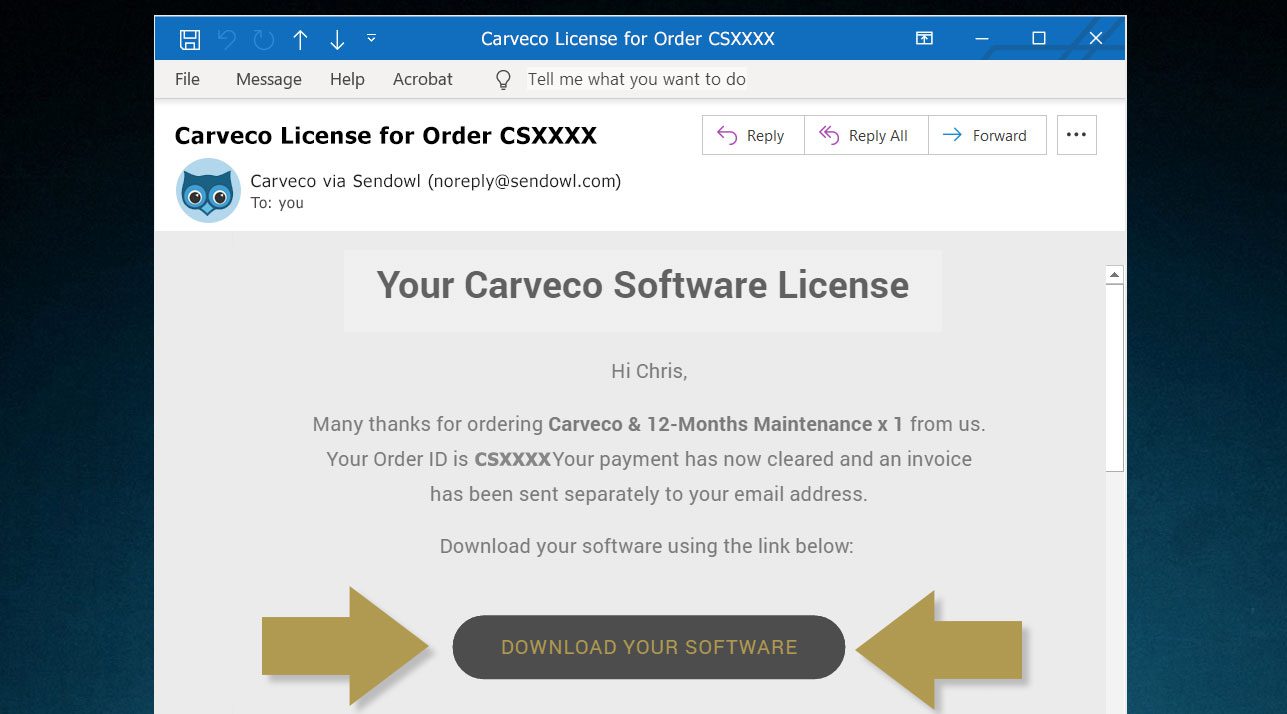
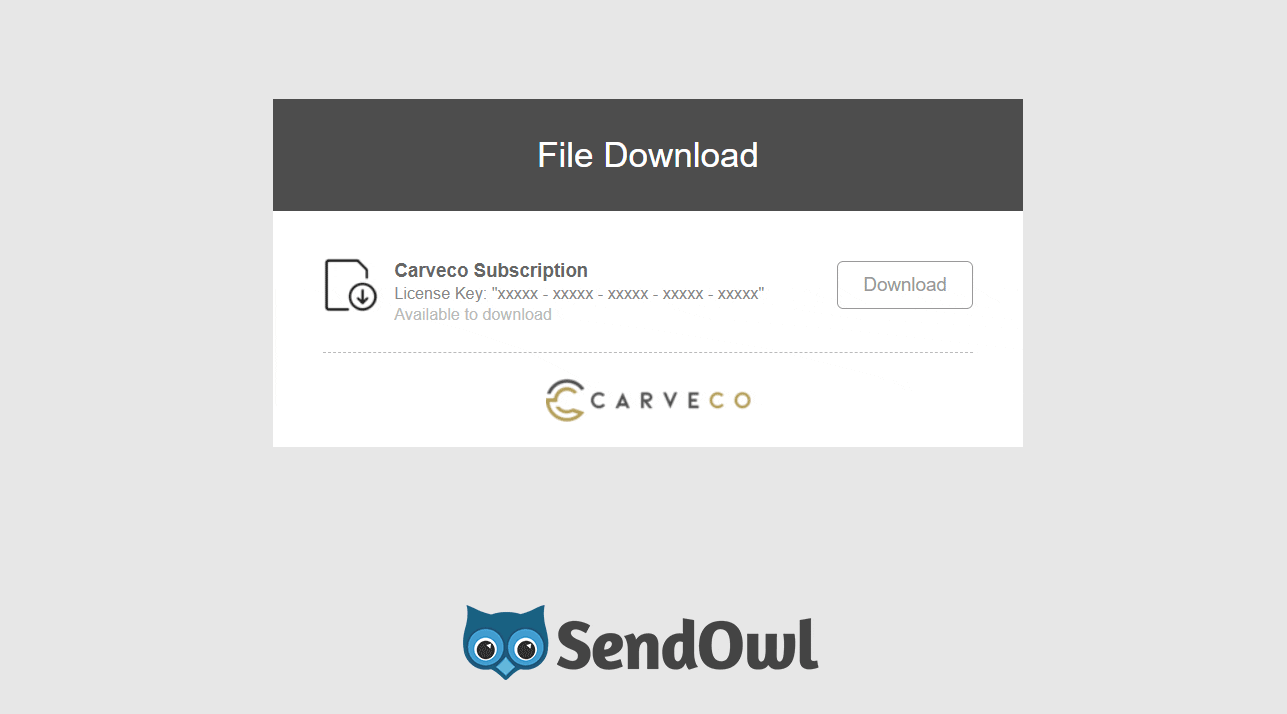
Within the email, please click on the ‘Download Software‘ button to be redirected to your secure download page on SendOwl.com. This download page is unique to you and will also display a copy of your unique license key as shown in the same email.
Download the Carveco Installer from this web page then select and copy your unique license key.
2. Installing Your Software
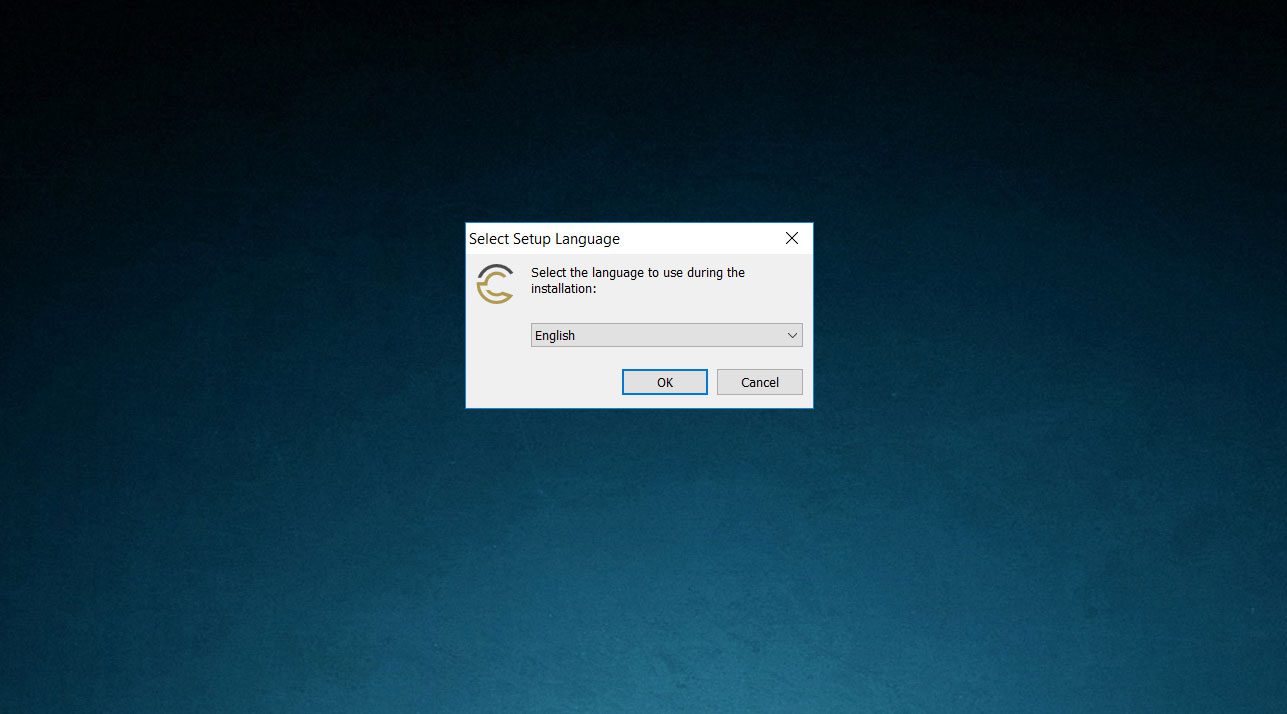
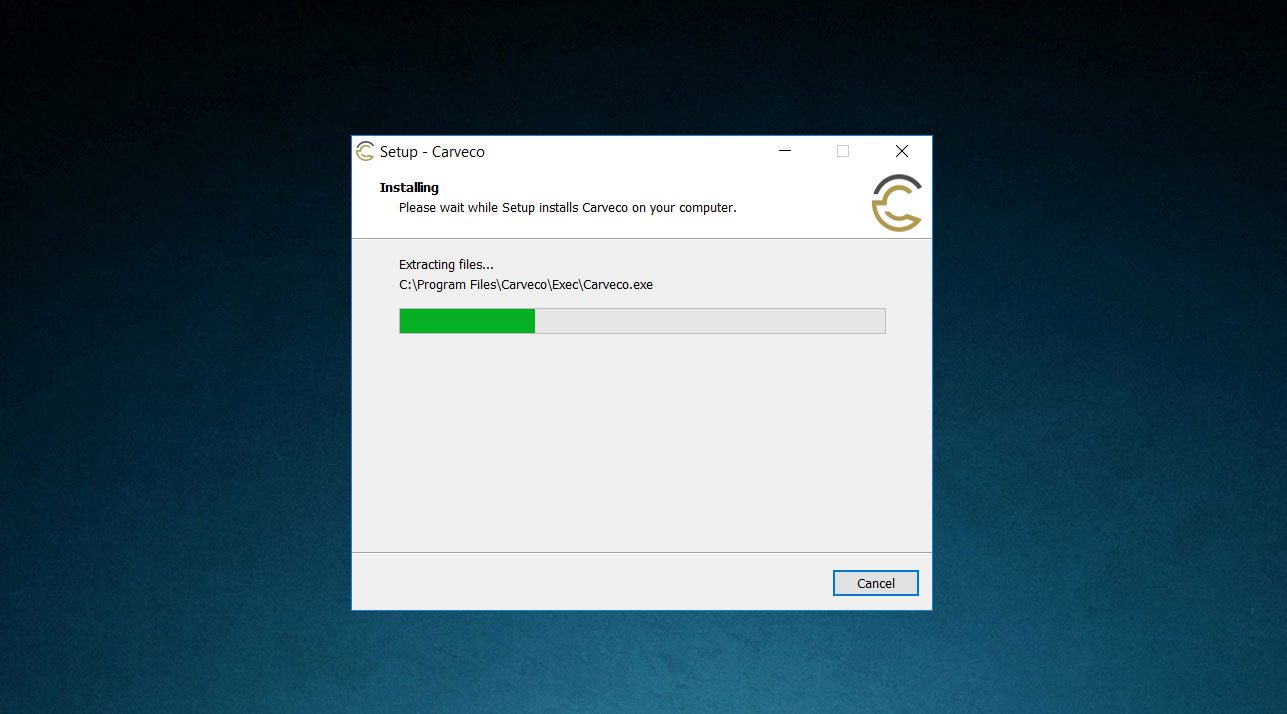
In your downloads folder (or your specified download location), double click on the Carveco Installer to begin the Carveco Setup Wizard.
Choose your preferred language from the drop-down menu to proceed with the installation.
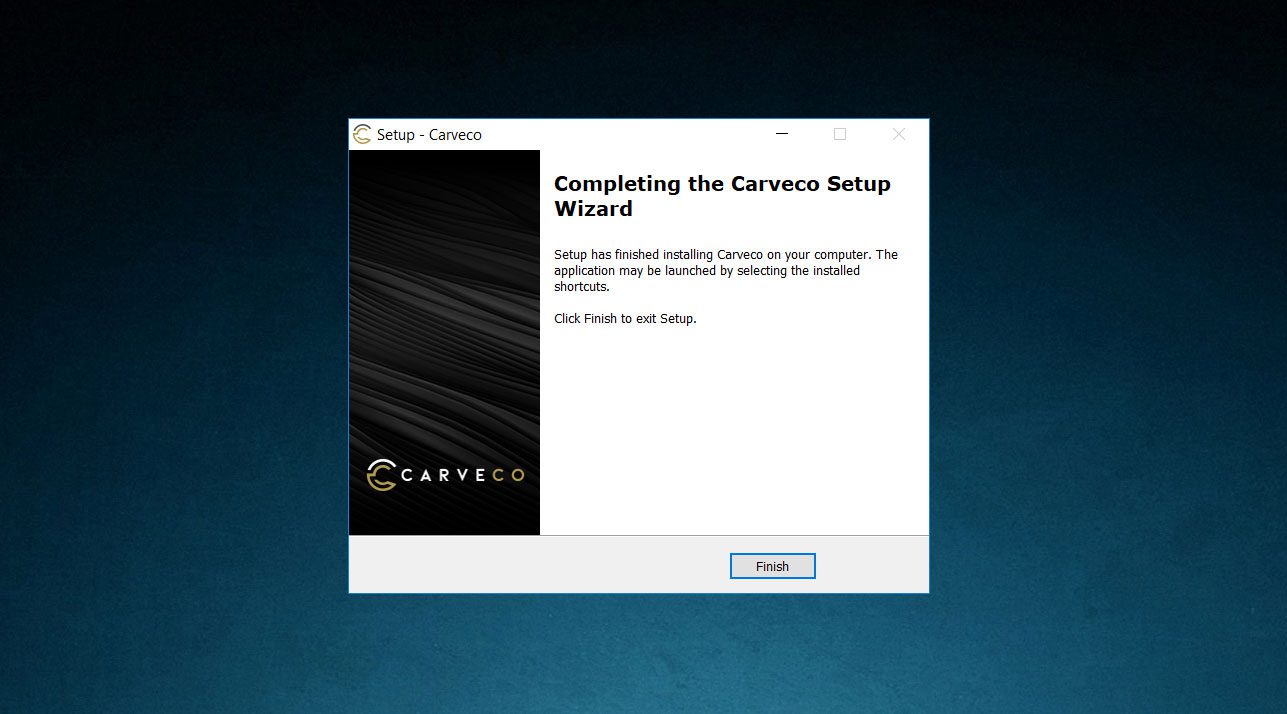
Once complete, click Finish to exit the Setup Wizard.
Carveco should now be installed on your system.
3. Activating Carveco Maker Plus
When you launch Carveco Maker Plus for the first time following installation, you will be presented with the Welcome Screen as shown in the image below.
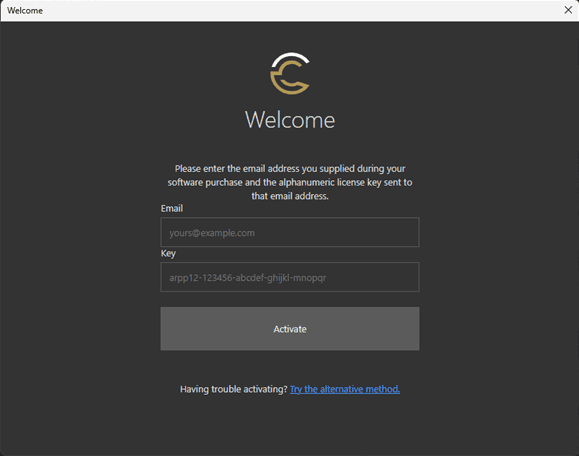
- Please enter your email address and license key (this can be found in your license email) details into the fields provided.
- Click ‘Activate‘.
If you have entered your email address and license key correctly, Carveco Maker Plus should now be activated on your system and the software will automatically launch.
If you’re unsure of which activation option is most appropriate for you
4. Managing A Subscription
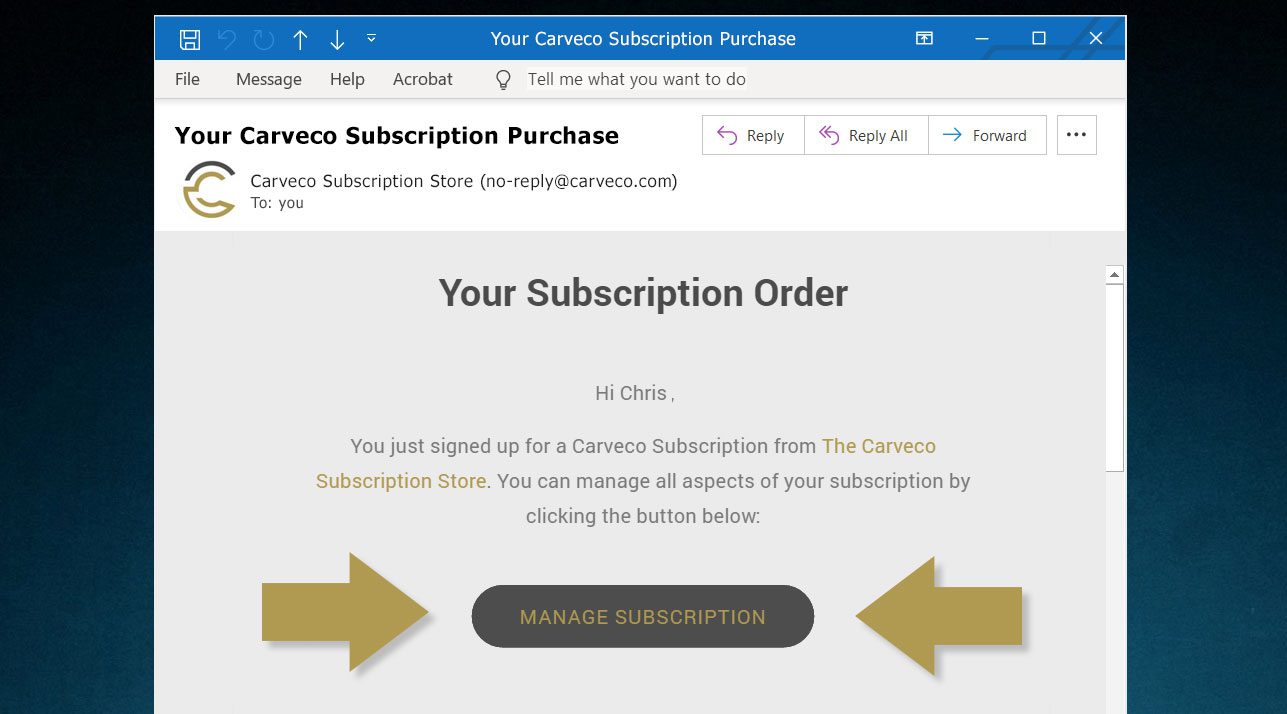
If you have subscribed to Carveco Maker Plus from the online store, one of the emails you receive from us will be titled ‘Your Carveco Subscription Purchase‘, this email contains a link to your dedicated subscription management portal.
Click the ‘Manage Subscription‘ button (see image) to access the portal.
Here you can update your contact and subscription details and cancel any active subscriptions you may have with Carveco.
5. Help & Support
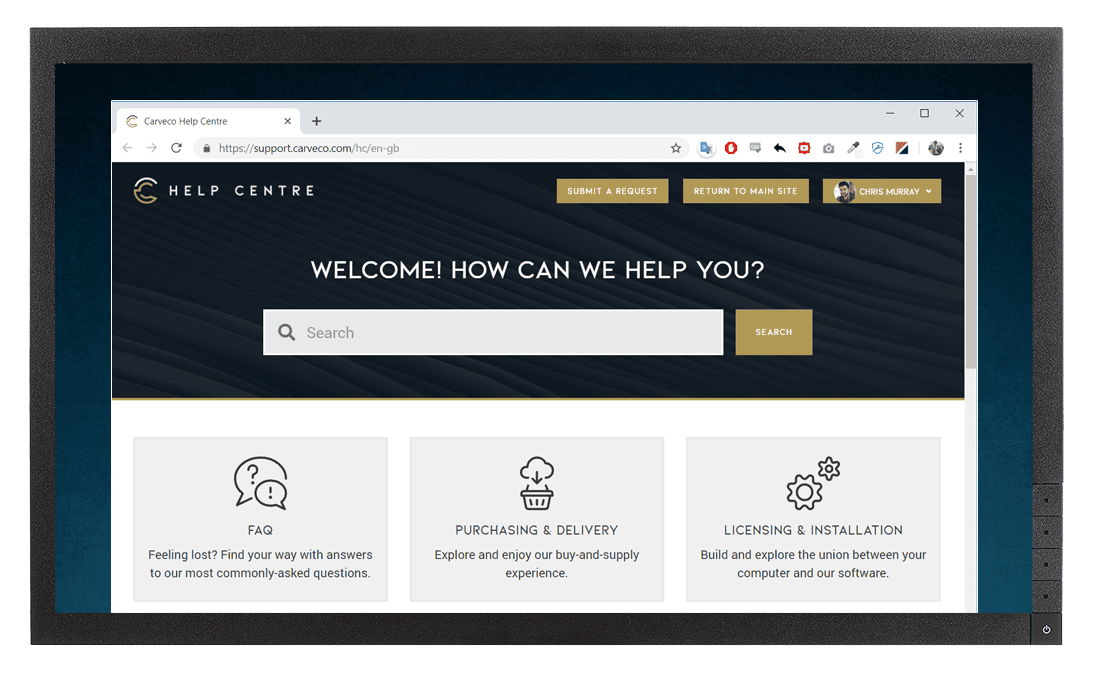
The Carveco Help Centre & Community is a fantastic resource to get help from Carveco Staff and fellow Carveco users alike. You can submit support requests that are directly linked to your account and it should be your first port of call for any issues surrounding the software, post processor requests or if you just need some guidance on a specific tool or feature.
Relief Clipart Library

685MB (.exe)
The Relief Clipart Library contains over 600 relief models for you to incorporate into your designs.
6. Download The Relief Clipart Library
All Carveco products come with the Relief Clipart Library of over 600+ relief models.
To import this collection into your software, please click on the button opposite to download and run the installer.
7. Carveco Training
The Carveco Fundamentals training course is designed to give you a solid foundational knowledge in the key tools, features, workflows and techniques of your software.
From working with bitmaps and vectors right through to machining your first designs and following along with sample projects; the Fundamentals training course is an essential learning path for users of all Carveco software.
8. Additional Resources
The Carveco YouTube Channel is home to a growing library of video tutorials, tips, tricks and in-depth projects that cover all Carveco products.

Subscribe to ensure you don’t miss any new videos
9. Subscription FAQ
You can easily manage your Carveco Subscription two ways:
1. Via Your Unique Email Link
Upon purchasing a Carveco product subscription, look out for an email with the Subject ‘Your Carveco Subscription Purchase‘ from no-reply@carveco.com (see image below).
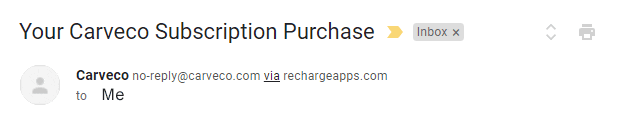
This email contains a ‘Manage Subscription‘ button (see image) which is your unique link to your own dedicated customer portal. From there you can view and amend all aspects of your Carveco Subscription. These include:
- Your Subscriptions
- Billing Information
- Purchase History
Haven’t received this email?
Please raise a ticket with our support team via the Carveco Help Centre.
2. Via Your Subscription Store Account
(Existing Subscription Store account required)
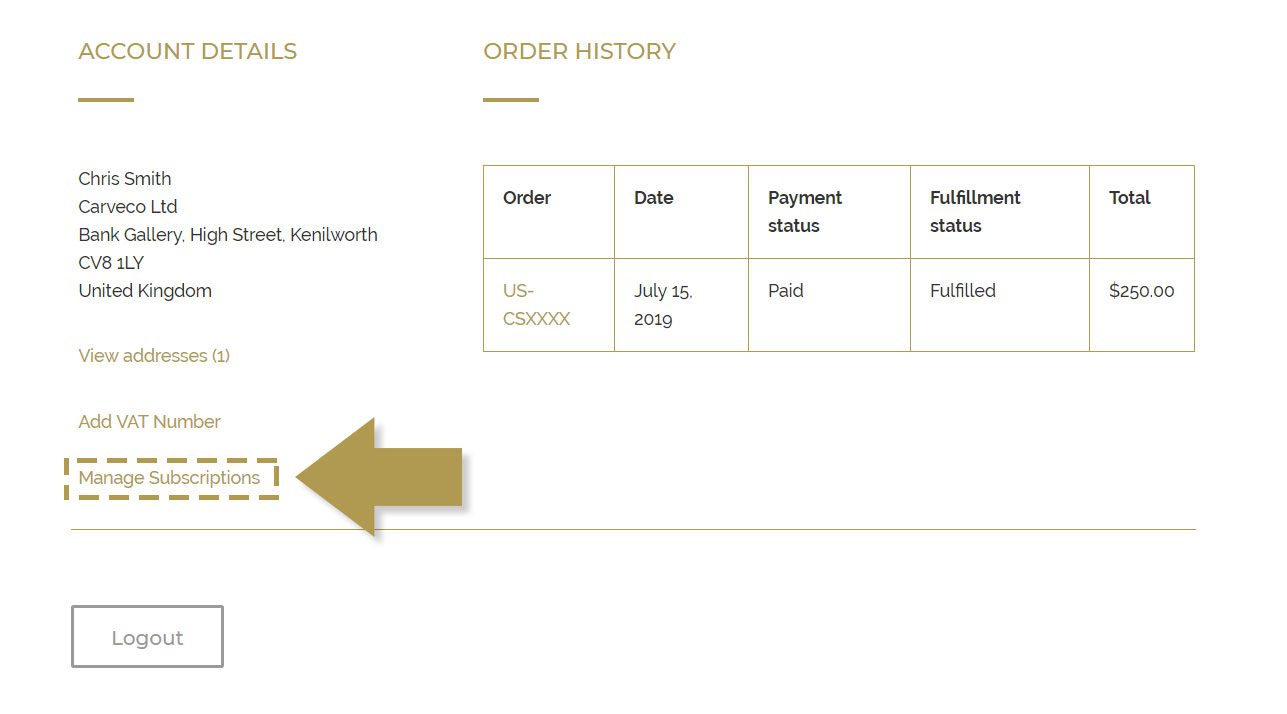
If, at the end of the checkout process, you registered for a Subscription Store account – you can access your subscription portal directly on the Carveco Subscription Store using the steps below.
- Log into your account on the Carveco Subscription Store
- Click on the ‘Manage Subscriptions‘ link (see image)
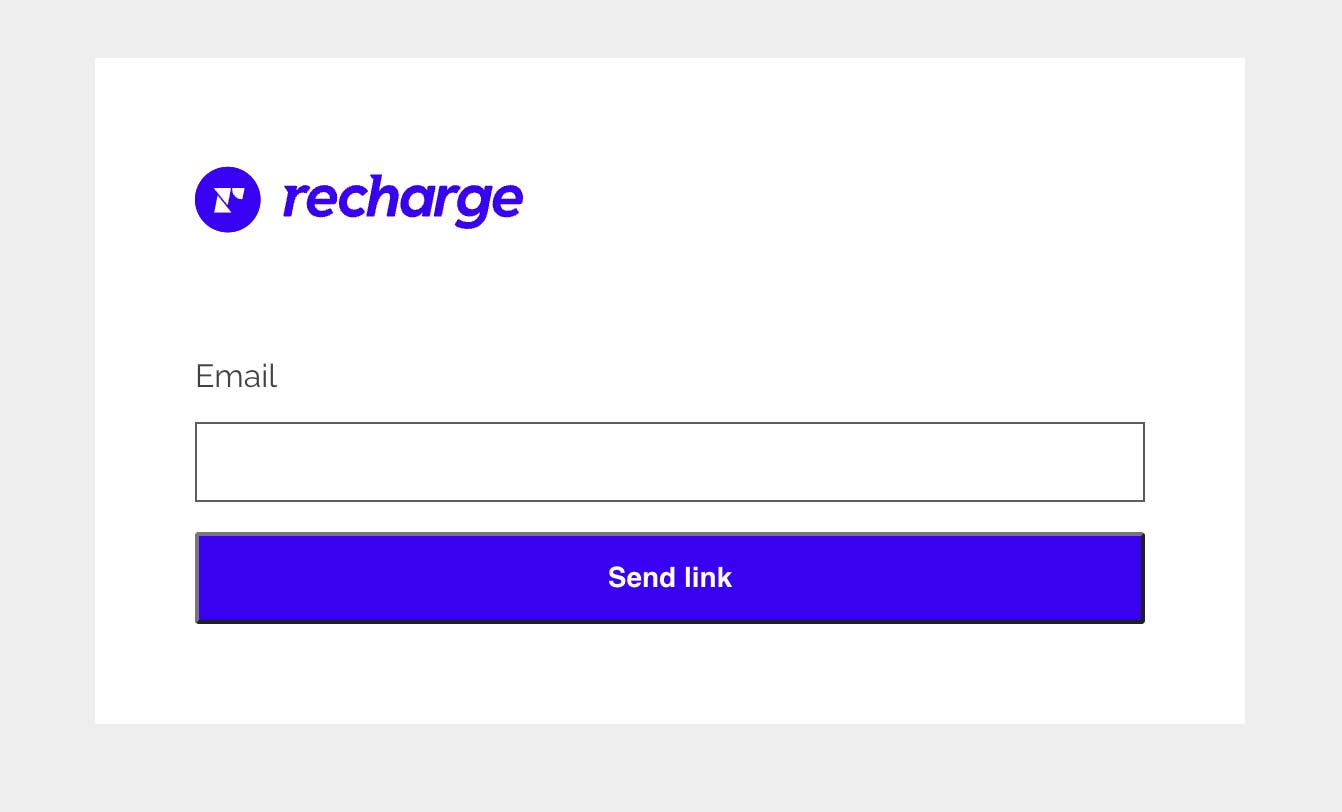
Can’t Find the ‘Manage my subscription’ link?
You can request a new access link to your dedicated subscription portal by clicking the button below.
Please ensure you enter the email address that you used when purchasing your Carveco subscription.
For Online store customers
In order to cancel your subscription, you will first need to log in to your account as outlined in the ‘How do I manage my Subscription‘ FAQ post.
After successfully accessing the Subscription management site, Click on the Subscriptions link in the top menu. This will show you all your Active and Inactive Carveco Subscriptions.
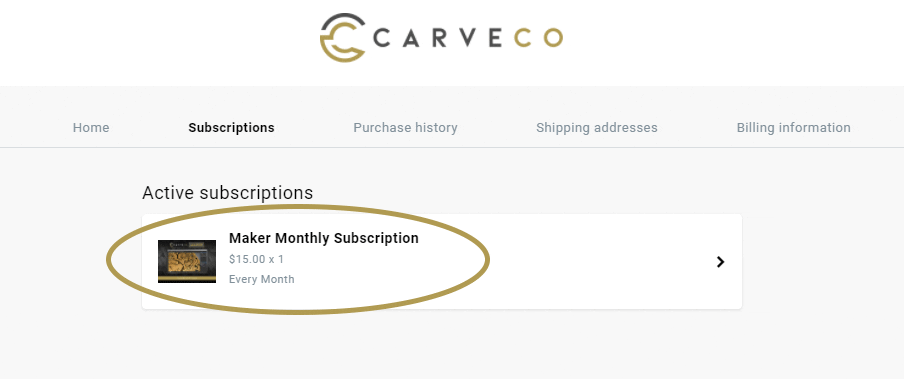
Click on the Carveco product (Maker Monthly Subscription for example) under the Active Subscriptions heading (see image below).
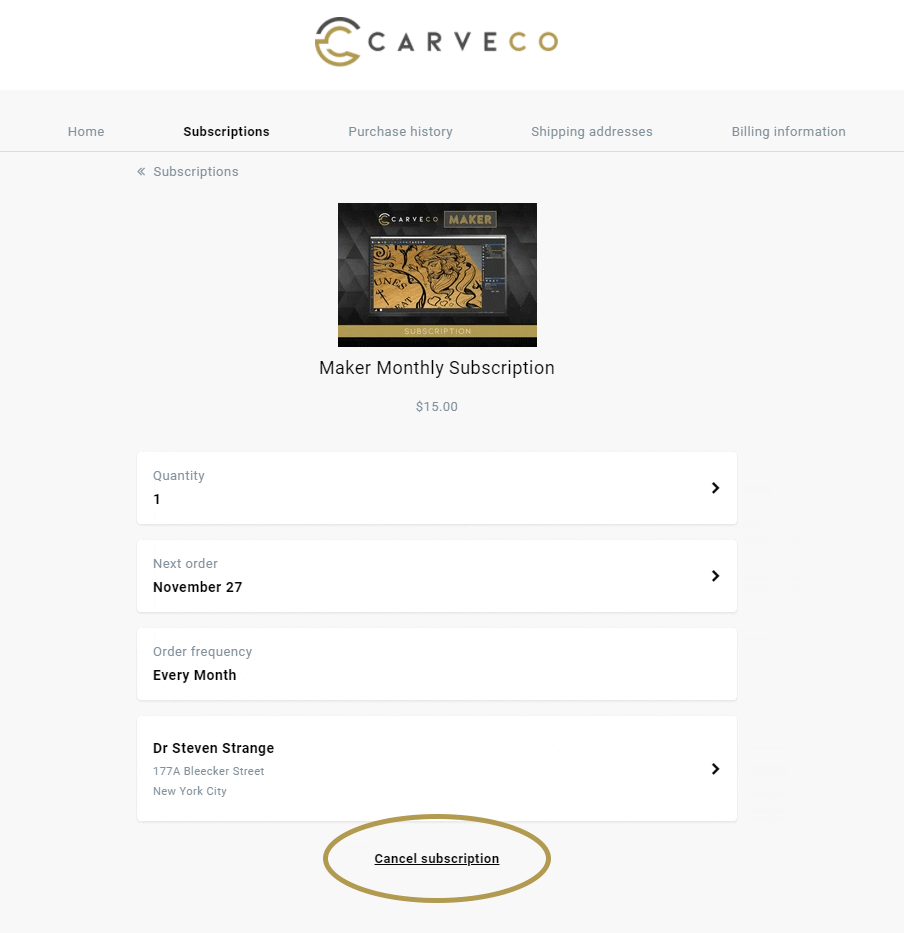
The last item on the page will be a Cancel Subscription link (see image below). Click this link and you will then be guided through the cancellation process that should only take a few clicks.
Please follow the steps through and your Carveco subscription order will be Cancelled.
We understand that some customers may only need Carveco software for specific CNC projects or use it infrequently. However, at this time, we do not offer an option to pause or suspend an active Carveco subscription.
If you foresee a period where you won’t need access to Carveco, we recommend canceling your subscription before the next billing cycle and resubscribing when you’re ready to use it again. This ensures you have control over your subscription without incurring charges during periods of inactivity.
Carveco (Carveco Maker, Carveco Maker Plus, Carveco Pro) will need to be connected to the internet when you activate your subscription to allow for communication between your software and our licensing server. Afterwards, the software can run without an active internet connection for up to 21 days. The software will then need to reconnect to our licensing server, and check that your subscription is still active.
For most internet-connected customers with an active subscription, Carveco will seamlessly re-license itself in the background. But if your software is having trouble accessing our License server, the software will let you know. If you have not used your software for several months, you may be required to re-activate the software when next used.
You can install your Carveco software on multiple computers and transfer your license between them. For more information about concurrent license limits, please refer to this FAQ article.
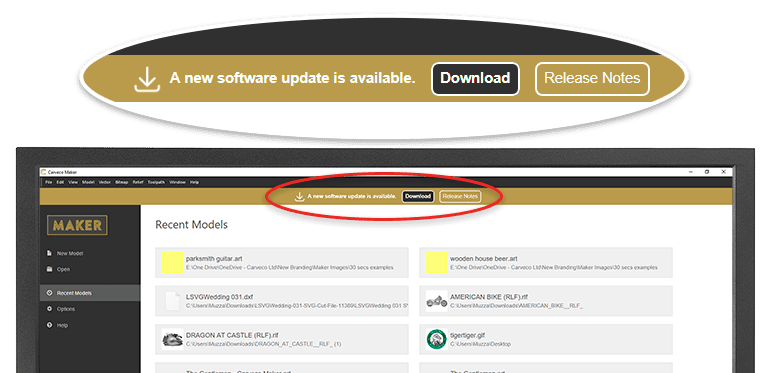
From Carveco 1.16 onwards (all products) we added the ability for the software to notify users of any updates that become available, from within the software itself. Please click the link from the start page of your software to download any new releases that are available.
For customers updating from versions before 1.16; the update is also available to download via sendowl.com (our software delivery service provider) from your dedicated download portal.
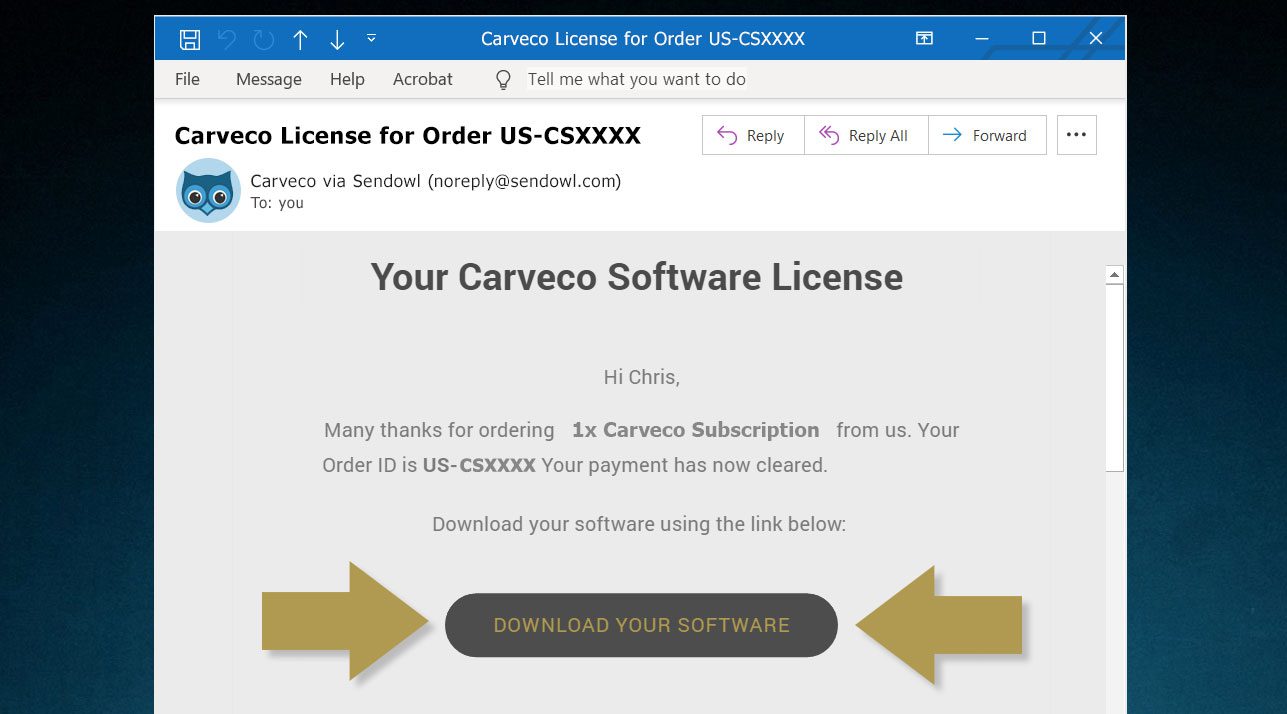
Please use the link within an email to access your personal download page (example shown below). Any previous Carveco emails that contain a link to your personal SendOwl download page (example shown below) – for example a previous update notification, or your original software download email – will automatically direct you to the latest version available.
Subscribers are always entitled to the latest updates we release.
You DO NOT have to install each update in order. You can update from any previous version of Carveco to the latest version available to you.
The main differences are how you pay, your entitlements to receive software updates, and AI functionality.
Carveco Subscription
- You pay monthly or yearly to access the software.
- Always includes the latest version while your subscription is active (plus all updates and enhancements released during your active subscription).
- Includes access to AI Tools and functionality.
Carveco Perpetual
- You own the version you purchase and can use it indefinitely.
- Includes 12-months of Maintenance as standard, which provides software updates, enhancements, and dedicated support during that first year.
- After the first year, you can choose to renew your Maintenance to keep receiving software updates/support, or continue using your software without Maintenance, remaining on the latest version available to you at the end of your Maintenance period.
- AI Tools and functionality are not included with Carveco Perpetual products, including during an active Maintenance period.
For more information on Maintenance, please visit our dedicated Maintenance page.
Unfortunately, due to the complexities of our licensing server, we don’t have the capability to renew a lapsed subscription. If your Carveco subscription has lapsed and you wish to rejoin, please place a new subscription order.
Following purchase, you will be given a new licence key to enter into the software when requested.
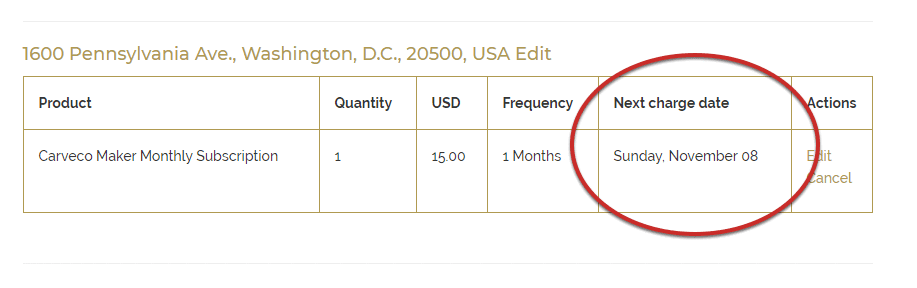
In order to view the date of an upcoming charge for your subscription, you will first need to log in to your portal as outlined in the ‘How Do I Manage My Subscription‘ FAQ post.
The ‘Next Charge Date‘ column will show you the date of the next scheduled charge for your subscription.
In order to upgrade/downgrade/change to a different Carveco product, please follow the steps below:
- Cancel your subscription to your current Carveco software product, by completing the steps outlined in the following posts:
- Deactivate your your current Carveco installation from within the software by completing the following steps:
- Open your Carveco software.
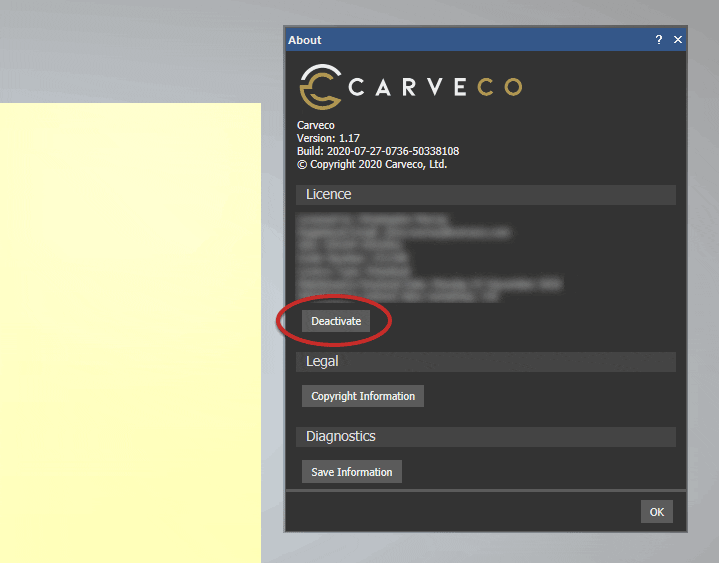
- Select the ‘Help‘ > ‘About Carveco‘ menu item to display the about box.
- Click the ‘Deactivate‘ button (see image) under your license information. This will allow you to enter a new licence key into the software.
- Purchase a new subscription to the product you wish to change to and enter you new license key into the software when prompted.
You can transfer a license allocation from one PC to another by Deactivating the license you no longer require. Please follow the deactivation steps outlined in our FAQ post: How do I deactivate my software?
