




Carveco Software Comparison
Carveco is built to grow with you. Each tier builds directly on the tools and features of the one before it, scaling from solo makers to large creative and manufacturing operations without ever asking you to relearn the software.
Here you’ll find a detailed breakdown of every feature included in Carveco Maker, Carveco Maker Plus and Carveco Pro. If you’re unsure of which Carveco product may meet your specific needs and requirements, please don’t hesitate to get in touch, we’d be more than happy to answer any questions you may have around any of our products.
Model Resolution
Every design starts with how much detail your model can hold. Higher resolution captures finer surface detail and smoother curves, giving you more control over intricate reliefs and precision parts — Carveco Pro doubles the resolution available in Maker and Maker Plus for the most demanding professional work.

|

|

|
|
|---|---|---|---|
| Maximum Model Resolution (points) | 2000 x 2000 (4,000,000) |
2000 x 2000 (4,000,000) |
4000 x 4000 (16,000,000) |
Bitmap Tools
Turn photos, scans and hand-drawn artwork into machinable designs. Import bitmap images, convert them into clean vector outlines or 3D reliefs, and work across multiple layers to build up detailed, multi-part designs without redrawing anything from scratch.
|
|
|
|
|
|---|---|---|---|
| Bitmap Editing | |||
| Bitmap-to-Vector | |||
| Adjust Resolution | |||
| Bitmap Layers | |||
| Deskew |
Vector Tools
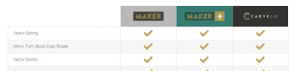
Create and edit precise vector artwork for cutting, engraving and carving, from simple shapes through to advanced offsets and guilloche patterns. Maker and Maker Plus cover everything most makers need day to day, while Pro unlocks the advanced vector shaping tools used in professional production work.
|
|
|
|
|
|---|---|---|---|
| Vector Editing | |||
| Mirror, Trim, Block-Copy Rotate | |||
| Vector Doctor | |||
| Fillet | |||
| Clip, Spline, Fill, Outline | |||
| Vector Layers | |||
| Basic Offset | |||
| Vector Library | |||
| Envelope Distortion | |||
| Multiplate | |||
| Vector Sheets | |||
| Advanced Offset | |||
| Guilloche | |||
| Vector Shadow |
Text Tools
Add text to any project and shape it exactly how you want it, including wrapping text smoothly along a curve for labels, signage and decorative lettering.
|
|
|
|
|
|---|---|---|---|
| Create Text | |||
| Text On a Curve |
3D Design Tools
Sculpt and shape 3D reliefs and models with a full toolkit for creative and technical design work, from clipart-based reliefs through to advanced sculpting and vector-to-3D conversion. Maker Plus and Pro add the deeper relief editing and modelling tools needed for more ambitious 3D projects.
|
|
|
|
|
|---|---|---|---|
| Relief Clipart Library | |||
| Scale Relief | |||
| Smooth Relief | |||
| Invert Relief | |||
| Relief Boundary | |||
| Magic Wand | |||
| Zero In/Out to Vector | |||
| Remove Small Holes | |||
| Paste Relief | |||
| Preview Relief | |||
| Create Mesh | |||
| Fade Relief | |||
| Relief from Greyscale | |||
| Extrude | |||
| Sculpting: Smooth | |||
| Sculpting: Erase | |||
| Sculpting: Deposit | |||
| Sculpting: Carve | |||
| Contour Blend | |||
| Shape Editor | |||
| Weave Wizard | |||
| Texture Relief | |||
| Turn Tool | |||
| Spin Tool | |||
| Relief Cookie Cutter | |||
| Add Draft | |||
| Envelope Distortion | |||
| Shading Parameters | |||
| Calculate Surface Area | |||
| Scale to Volume | |||
| Greyscale from Relief | |||
| Relief Mirror-Merge | |||
| Paste Relief On Vector | |||
| Two Rail Sweep | |||
| Relief Offset | |||
| Slice Relief | |||
| Create Ring | |||
| Constant Height Lettering | |||
| Back Reliefs | |||
| 3D Blend | |||
| Create Cross Section | |||
| Relief Layers | 1 | ||
| Advanced Sculpting Tools | |||
| Angled Plane | |||
| Relief Analysis Tools | |||
| Silhouette | |||
| Texture Flow | |||
| Latent Imaging |
AI Design Tools
Speed up your design process with AI-assisted relief creation. Generate a 3D relief straight from a text description, or turn a photo or image into a machinable model in seconds, with Fidelity and Forge giving you finer control over detail and structure as you refine the result.
|
|
|
|
|
|---|---|---|---|
| Text to Relief | |||
| Image to Relief | |||
| Fidelity | |||
| Forge | |||
| AI Credits Included monthly/yearly | 10 / 120* | 100 / 1,200* | 300 / 3,600* |
Access to AI Tools requires an active subscription; they are not available as part of a perpetual license. *Unused credits expire 365 days after issue, capped at a maximum accrued allocation per year.
2D Machining
Turn your vector designs into precise 2D toolpaths, covering everything from profiling and drilling to V-bit carving and inlays. Maker Plus and Pro add production-focused features like nesting, toolpath templates and batch calculation, so growing shops can machine more efficiently at volume.
|
|
|
|
|
|---|---|---|---|
| Profiling | |||
| Drilling & Peck Drilling | |||
| V-Bit Carving | |||
| Inlay Wizard | |||
| Fluting | |||
| Bevel Carving | |||
| Custom Model Origin | |||
| Bridges (Breakout Tabs) | |||
| Ramping Moves | |||
| Final Pass Cut | |||
| 3-Axis Rotary | |||
| Texture Machining | |||
| Nesting | |||
| Guillotine Cuts | |||
| Drillbanks | |||
| Toolpath Templates | |||
| Toolpath Panelling | |||
| Toolpath Ordering | |||
| Advanced Profile Options | |||
| Batch Calculate Toolpaths | |||
| Toolpath Merge/Copy/Transform | |||
| Edit Toolpath Parameters | |||
| Raised Round | |||
| Sequencing | |||
| Fluted Weave | |||
| Smart Engraving |
3D Machining
Generate roughing and finishing toolpaths for 3D reliefs and models, from straightforward raster and spiral passes through to advanced constant-Z, offset and rest machining strategies for complex surfaces. Pro brings the full range of 3D strategies needed for detailed, production-grade relief work.
|
|
|
|
|
|---|---|---|---|
| Raster & Classic Raster (X&Y) | |||
| Spiral In A Box & Classic Spiral In a Box | |||
| Roughing Raster | |||
| Offset Raster | |||
| Ramping Moves | |||
| Support For Laser Machines | |||
| 3-Axis Rotary | |||
| Create & Export Triangle Mesh | |||
| Advanced Raster & Advanced Raster (X&Y) | |||
| Toolpath Transform (Project, Drop) | |||
| Advanced Spiral & Advanced Spiral In a Box | |||
| Constant Z | |||
| 3D Offset | |||
| 3D Offset Spiral | |||
| 3D Offset Inside | |||
| Z-Level Roughing | |||
| Feature Machining | |||
| Surface Links | |||
| 3D Cutout | |||
| 3D Rest | |||
| Flip Machining | |||
| Ring Machining | |||
| Advanced 3D Mesh & Weight Calculation |
Simulation
Preview your entire machining job in 3D before you commit any material, so you can catch collisions, timing issues or unexpected toolpaths while they’re still free to fix. Pro adds Optifeed for automatic feed rate optimisation, and the ability to save simulation results as a new relief layer.
|
|
|
|
|
|---|---|---|---|
| Machining Simulation | |||
| Rotary Machining Simulation | |||
| Custom Shading Options | |||
| Simulation Options | |||
| Material Colour Simulation | |||
| Optifeed | |||
| Save/Copy To Relief Layer |
Supported File Types
Carveco works with the file formats you’re already using, from vector and bitmap artwork through to 3D models, meshes and toolpath files, so importing existing designs or exporting for other software, machines or workflows is straightforward, whichever product you’re on.
- AI Files*.ai
- DGK File*.dgk
- DXF (AutoCAD) File*.dxf
- DXF (AC1009) File*.dxf
- EPS File*.eps
- Duct Picture*.pic
- SVG File*.svg
- PostScript Files*.eps
- PDF Files*.pdf
- AutoCAD Files*.dxf;*.dwg
- Autodesk Files*.pic;*.dgk
- Bitmap Image*.bmp
- GIF Image*.gif
- JPEG Image*.jpg
- 8-Bit TIFF Image*.tif
- PNG Image*.png
- Carveco Relief*.rlf
- Carveco Model*.art
- ArtCAM 9 Relief*.rlf
- ArtCAM Model*.art
- Simple Relief Format*.srf
- Bitmap File*.bmp
- 16-Bit Grayscale TIFF Image (Carveco only)*.tif
- Picza Files*.pix
- CopyCAD wrap map with normals*.asc,*.ccb
For information about supported Autodesk ArtCAM® files, please view our FAQ post.
- 3D Studio*.3ds
- Carveco Assembly*.3da
- Carveco Projects*.3dp
- Autodesk DXF File*.dxf
- Autodesk DWG File*.dwg
- Autodesk DDZ File*.ddz
- Autodesk DGK File*.dgk
- Autodesk DDX File*.ddx
- U3D File*.u3d
- Autodesk Machining Triangles*.dmt
- Wavefront Object File*.obj
- 3D PDF File*.pdf
- ASCII STL File*.stl
- Binary STL File*.stl
- IGES File*.igs, *.iges
- STEP File*.stp, *.step
- 3DM File*.3dm
- Tool Database Files*.tdb
- Toolpath Templates*.tpl
Please note: This list does not include posts, but we do include a variety of posts as standard with all variations of Carveco. For a full list of supported CNC machine tool manufacturers please click here.
